Online Ruler (Actual Size)
An on-screen ruler that starts with an estimate. Save a mapping with a compliant bank card or screen size, verify it, then measure in centimeters, millimeters or inches.
Display settings
Calibration details
Resulting density: 96.0 PPI · Not calibrated · estimate only
Verify against a physical reference. Different displays can report identical parameters; display changes cannot always be detected.
Press and drag across the ruler to measure a distance in cm and inches.
Keyboard: focus the ruler and press Enter to start at zero, then Tab to − or + to adjust.
How to calibrate this ruler
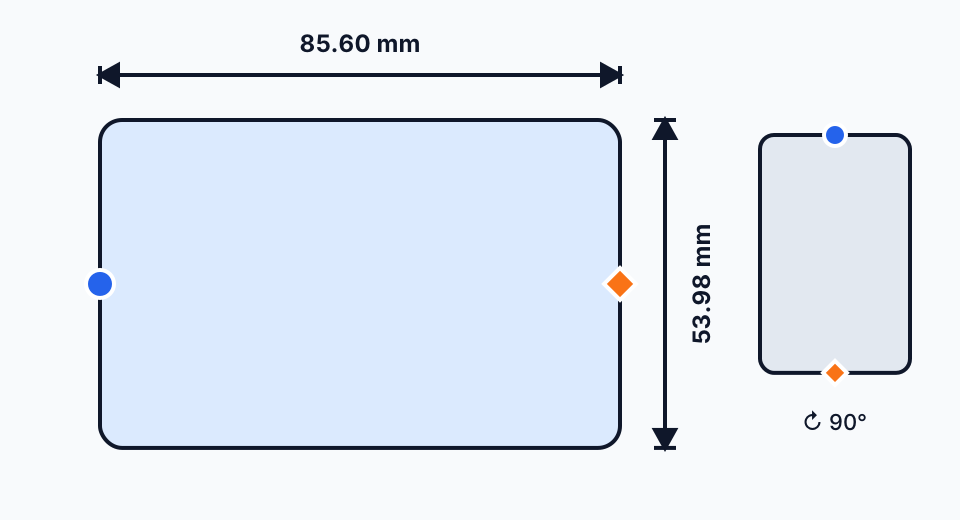
Method 1 — Bank card (recommended)
Use only a bank card known to follow ISO/IEC 7810 ID-1 (85.60 × 53.98 mm). Choose its placement and long or short reference edge, align the fixed circle, then move the diamond with the slider or ± buttons in 0.5 CSS px steps. Save and verify the result on the ruler.
Method 2 — Screen diagonal
Browsers cannot detect a display's physical size, so an automatic value is only an estimate. Look up your device's visible-panel diagonal in inches (in its specs or manual), enter it in the calibration dialog, then verify the calculated pixel density with a physical reference.
How actual size works
- The browser reports your screen resolution and pixel ratio, but not its physical dimensions.
- Calibration saves the CSS pixels per inch measured from your chosen reference; the saved state is not itself proof of physical accuracy.
- Ticks use that mapping (1 inch = saved CSS PPI; 1 mm = PPI ÷ 25.4). They are intended to match physical distance at the current display and zoom, so check them with an independent reference.
Before you measure
- Keep browser zoom at 100% (press Ctrl/Cmd + 0) — zooming rescales pixels and breaks the size mapping; the ruler warns you when it detects this.
- JavaScript must stay enabled; all calculations run locally in your browser and nothing is sent to a server.
- Hold the object flat against the screen, aligned with the 0 mark of the top, left, or right ruler.
When to use an on-screen ruler — and when not to
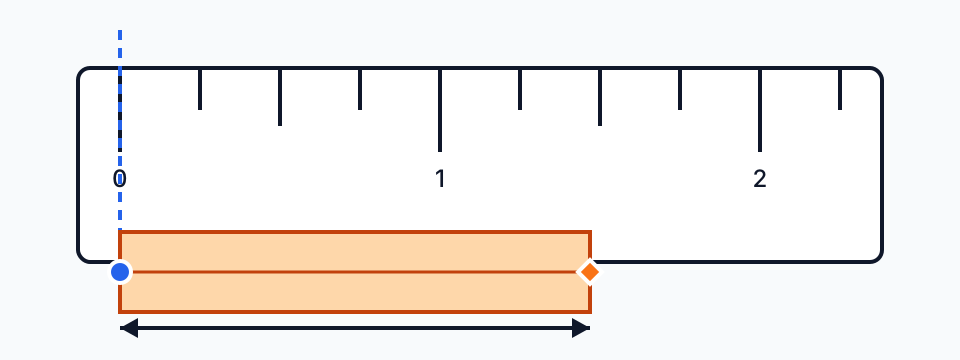
Good uses
Quick checks where a millimeter or two does not matter: sizing a ring or watch band, checking a screw against a spec, measuring a phone case, a photo print, a plant cutting or a piece of jewelry, or confirming that a downloaded pattern printed at the right scale. Small objects that fit on the screen are easier to place flat against the glass.
When to reach for a physical ruler
Anything longer than your screen, anything with legal, medical or financial consequences, and any task with a strict tolerance needs a physical ruler or calipers. The 1 mm ticks and 0.5 CSS px calibration steps describe scale and adjustment resolution, not physical accuracy. Curved monitors and thick screen protectors add error; the accuracy page explains the sources.
Actual-size ruler, printable ruler, or photo ruler?
This page is an actual-size ruler: the scale is drawn to match your calibrated screen. A printable ruler moves the problem to the printer, which must print at exactly 100% scale. The image measurement tool works the other way round — you mark one known distance on a photo and it scales everything else. Pick the tool that matches where the object is.
Devices and browsers
The ruler runs in any current browser on Windows, macOS, Linux, iOS and Android with JavaScript enabled. Full-screen mode uses the browser's Fullscreen API where it is available. The dedicated centimeter, millimeter and inch pages open with that scale selected; the unit tabs switch at any time.
Screen ruler reference
The numbers you need to set up, check and use an on-screen ruler. Every value below is calculated from a published standard, an issuer specification or the screen figures shown — none comes from testing one particular device.
Why an uncalibrated ruler shows the wrong size
CSS defines one inch as 96 CSS pixels, but real screens show a different number of CSS pixels per physical inch. A ruler that trusts the 96-pixel reference is only right on a screen that happens to match it. The table works out the CSS pixel density of common setups from the nominal diagonal and the effective (scaled) resolution, and shows how long a “10 cm” line drawn at 96 px per inch would really be.
| Screen and scaling | CSS px per inch | A “10 cm” line at 96 px/in measures |
|---|---|---|
| 24-inch monitor, 1920 × 1080 at 100% | 91.8 | 10.5 cm |
| 27-inch monitor, 2560 × 1440 at 100% | 108.8 | 8.8 cm |
| 15.6-inch laptop, 1920 × 1080 at 125% | 113.0 | 8.5 cm |
| 14-inch laptop, 2560 × 1600 at 150% | 143.8 | 6.7 cm |
| 13.6-inch laptop, scaled to 1470 × 956 | 128.9 | 7.4 cm |
| 11-inch tablet, 2388 × 1668 at 2× | 132.4 | 7.3 cm |
| 6.1-inch phone, 1179 × 2556 at 3× | 153.8 | 6.2 cm |
Nominal diagonals are rounded and some panels have rounded corners, so a real device can differ by a few percent. That spread is why this ruler asks you to calibrate and then verify. The arithmetic is explained in how to calculate screen PPI and CSS pixels vs device pixels.
Check your calibration with coins, cards and paper
After calibrating, lay an object with a standardized size against the ruler. If the reading matches the table to within about a millimeter, the mapping is good for everyday use. Coins are the handiest check because almost everyone has one: keep the coin flat and measure across its widest point.
| Object | Size (mm) | Size (inches) |
|---|---|---|
| Bank card (ISO/IEC 7810 ID-1) | 85.60 × 53.98 mm | 3.370 × 2.125 in |
| US quarter (25¢) | Ø 24.26 mm | Ø 0.955 in |
| US penny (1¢) | Ø 19.05 mm | Ø 0.750 in |
| US banknote | 155.96 × 66.29 mm | 6.140 × 2.610 in |
| 1 euro coin | Ø 23.25 mm | Ø 0.915 in |
| 2 euro coin | Ø 25.75 mm | Ø 1.014 in |
| UK £1 coin | Ø 23.43 mm | Ø 0.922 in |
| Canadian $1 coin | Ø 26.50 mm | Ø 1.043 in |
| Australian $1 coin | Ø 25.00 mm | Ø 0.984 in |
| Japanese 100 yen coin | Ø 22.60 mm | Ø 0.890 in |
| Japanese 500 yen coin | Ø 26.50 mm | Ø 1.043 in |
| South Korean 100 won coin | Ø 24.00 mm | Ø 0.945 in |
| South Korean 500 won coin | Ø 26.50 mm | Ø 1.043 in |
| New Taiwan $1 coin | Ø 20.00 mm | Ø 0.787 in |
| New Taiwan $10 coin | Ø 26.00 mm | Ø 1.024 in |
| Philippine 1 peso coin (New Generation) | Ø 23.00 mm | Ø 0.906 in |
| Philippine 5 peso coin (New Generation) | Ø 25.00 mm | Ø 0.984 in |
| SD memory card | 32.00 × 24.00 mm | 1.260 × 0.945 in |
| microSD card | 15.00 × 11.00 mm | 0.591 × 0.433 in |
| A4 sheet (ISO 216) | 210.00 × 297.00 mm | 8.268 × 11.693 in |
| US Letter sheet | 215.90 × 279.40 mm | 8.500 × 11.000 in |
Coin sizes are the issuing authorities’ specifications for current circulating designs; older, worn or commemorative coins can differ. If a reading is off, recalibrate rather than correcting it in your head — the calibration guide covers both methods.
Find a ring size with the ruler
Lay a ring that already fits flat on the ruler and measure its inside diameter, from inner edge to inner edge, along the widest line. Then look the value up below. US and Canadian sizes step by about 0.81 mm of diameter, so a one-millimeter reading error is more than a whole size: measure twice and treat the result as a starting point.
| US / Canada size | Inside diameter (mm) | Inside circumference (mm) |
|---|---|---|
| 3 | 14.1 | 44.2 |
| 4 | 14.9 | 46.8 |
| 5 | 15.7 | 49.3 |
| 6 | 16.5 | 51.9 |
| 7 | 17.3 | 54.4 |
| 8 | 18.1 | 57.0 |
| 9 | 18.9 | 59.5 |
| 10 | 19.8 | 62.1 |
| 11 | 20.6 | 64.6 |
| 12 | 21.4 | 67.2 |
| 13 | 22.2 | 69.7 |
The circumference column is also the ISO 8653 ring size used in much of Europe (size 54 ≈ 54 mm around). Wide bands, over about 6 mm, usually need a slightly larger size. For an expensive ring, confirm with a jeweler before you order.
Tips for an accurate reading
- Keep browser zoom at 100% (Ctrl/Cmd + 0). Zoom rescales every pixel, which is why browser zoom breaks actual size.
- Look straight down at the edge you are reading. Viewing at an angle through the cover glass shifts the apparent position by up to a millimeter or two.
- Start at the 0 mark, not the edge of the screen — the bezel and rounded corners are not part of the scale.
- Rest the object gently on the glass. Never press on a laptop or monitor panel; pressure can damage it.
- Measure twice, once from each end. If the readings differ, use the average or check the alignment.
- Recalibrate after moving the window to another monitor or changing display scaling, because both change the size of a CSS pixel.
- Protect the screen: lay a clear plastic sleeve over it before measuring anything sharp, wet or dirty.
How to use this ruler
- Check the calibration badge above the ruler. Until you calibrate, the ruler uses a screen-based estimate that can be far off on phones and high-DPI laptops.
- Click “Calibrate” and match the on-screen outline to a bank card, or enter your screen's diagonal size.
- Choose cm, mm or inch with the unit tabs, then hold the object flat against the screen with one edge on the 0 mark.
- Or press and drag along any ruler to read the distance in mm, cm and inches at once.